Update Your Billing Information
Your billing information can only be updated from the Bitwarden web app.
warning
Subscriptions to individual plans and organizations plans are separate; you will need to update your billing information in separate areas. If you have both premium and organizations subscriptions, updating billing information for one will not update the other.
To update your individual subscription's billing information, go to Settings → Subscription → Payment details:

On this page, you can:
Add Credit (PayPal or Bitcoin) that can be used to make purchases. Available credit will be automatically applied towards invoices generated for this account.
Change Payment Method (credit card or PayPal)
Add a Payment Method (credit card or PayPal)
Select the Billing history tab to:
View and download Invoices
View Transactions
You must be an owner to update billing information for your organization. To update the billing information for your organization's subscription:
To update your organization's billing information, including its VAT or GST number where applicable:
In the Bitwarden web app, open the Admin Console using the product switcher:
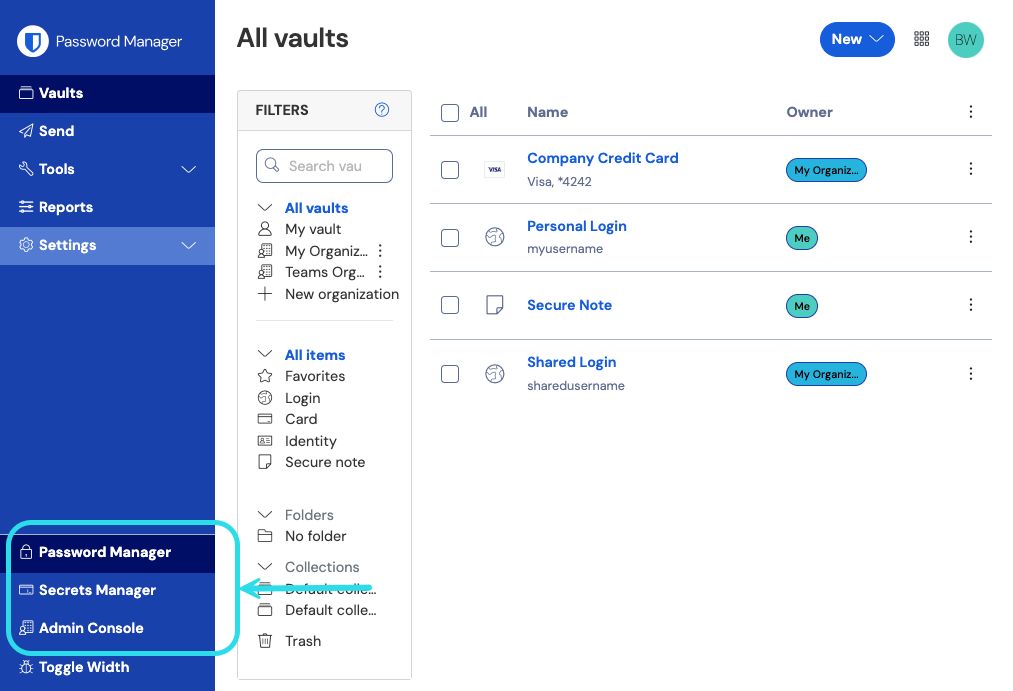
Product switcher From the navigation, select Billing → Payment details:
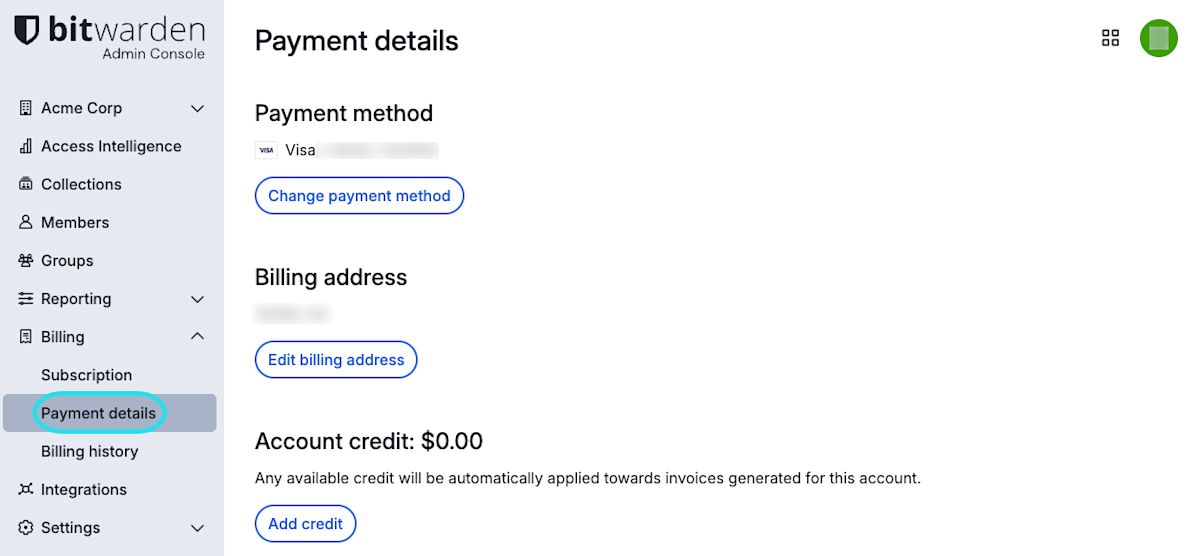
Organization payment details This screen gives you the options to:
Change payment method (credit card or PayPal)
Edit billing address
Add credit (PayPal or Bitcoin) that can be used to make purchases. Available credit will be automatically applied towards invoices generated for this account.


note
Contact us if your billing information has been updated and your subscription remains disabled.
You must be an owner to update the billing email for your organization. To update the billing email for your organization's subscription:
In the Bitwarden web app, open the Admin Console using the product switcher:
Product switcher From the navigation, select Settings → Organization info.
Update your Billing email and select Save.