Log In & Unlock with Passkeys
note
Bitwarden offers three passkey features: use passkeys to log in and unlock your Bitwarden account, use passkeys for 2FA on your Bitwarden account, and autofill stored passkeys for other websites and services.
Passkeys offer secure authentication for your Bitwarden account. Use them to log in and, with a PRF-capable setup, automatically unlock your vault without entering your master password. Passkeys bypass two-step login, offering a streamlined alternative to traditional password-based authentication.
Using passkeys to log in and unlock your Bitwarden account is currently supported in these Bitwarden apps:
Browser extension in Chromium-based browsers
Web app
note
On macOS, creating and using PRF-capable passkeys to unlock your vault requires a Chromium-based browser.
Passkeys used to log in to Bitwarden require user verification, such as biometrics or a security key to authenticate and use your passkey.
To decrypt and unlock your vault with a passkey, you need to set up encryption for that specific passkey. Your browser (like Google Chrome) and authenticator (like YubiKey 5) must both be PRF-capable to use this unlock method. If either is not PRF-capable, you'll need to use a different unlock method, such as your master password or PIN.
PRF capability varies by equipment and environment. For example, Google Chrome is PRF-capable, but Chrome profiles are not. YubiKey 5 is a PRF-capable authenticator. Additionally, Windows 10 is known to have issues with PRF-capable passkeys.
You cannot use passkeys with Bitwarden if you’re in an organization that uses the Require SSO policy, SSO with trusted devices, or Key Connector.
Bitwarden will not prompt or allow you to save a passkey for logging in to any Bitwarden account. This prevents the circular problem of needing access to your vault to log in to the very same vault.
Use the web app to create, update, and remove passkeys that are used to access your Bitwarden account.
You can add up to five passkeys to your Bitwarden account. To create a passkey for logging in to Bitwarden:
In the web app, go to Settings → Security.
Select Master password.
Within the Log in with passkey section, select Turn on or, if you've already setup a passkey, New passkey. You'll be prompted to enter your master password.
Follow prompts from your browser to create a FIDO2 passkey. You can complete user verification using a factor like a biometric or by creating a PIN.
tip
You may need to cancel out of a default authenticator your browser will want you to use, for example if you want to use a hardware security key on a macOS device that will prioritize Touch ID.
Enter a Name for your passkey.
(Optional) If your browser and authenticator are PRF-capable, the Use for vault encryption setting will be checked by default. This allows your passkey to decrypt and unlock your vault. Uncheck this option if you do not want the passkey to unlock your vault:
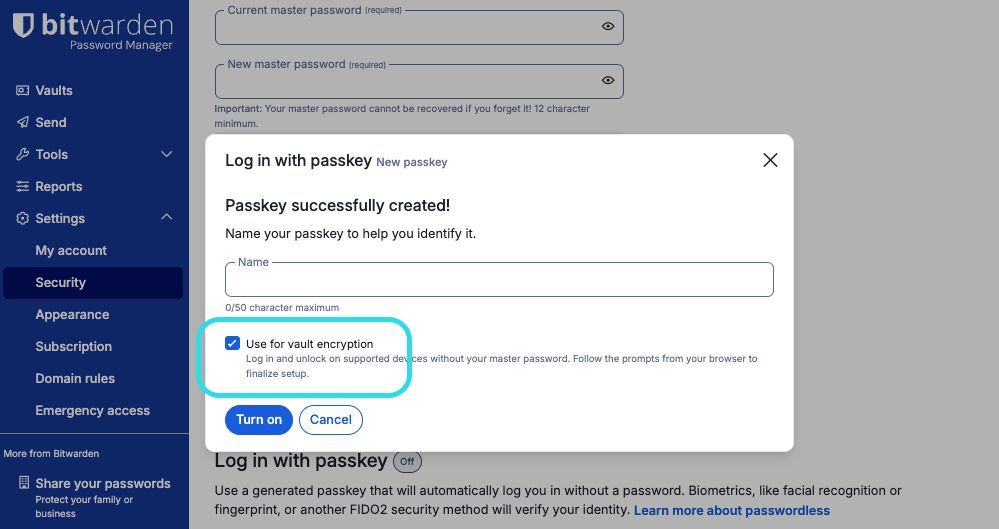
Use passkey for vault encryption Select Turn on.

If your browser and authenticator are PRF-capable, you can decrypt and unlock your vault with a passkey. There are two ways to do this:
When creating a passkey, keep the Use for vault encryption setting checked (step 6).
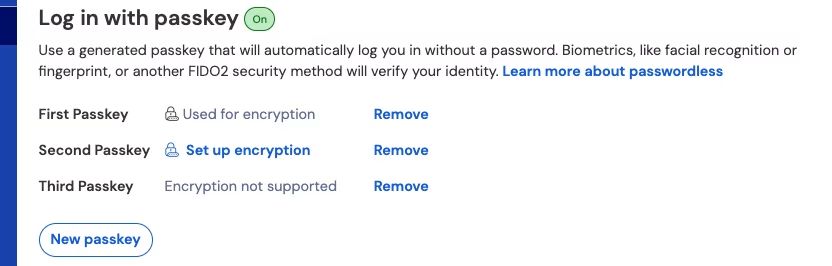
For an existing passkey, go to Settings → Security → Master Password and select Set up encryption next to the passkey:
Passkeys list

Your passkeys list shows the encryption status for each passkey: Used for encryption, supported but not active (Set up encryption), or Encryption not supported.
To delete a passkey from your Bitwarden account, go to Settings → Security → Master Password and select Remove next to the passkey. This disconnects the passkey from Bitwarden, but the private key will remain in your FIDO2 authenticator.
If you lose or delete a passkey, such as from a security key, Windows Hello, or Apple Passwords, it can no longer be used to access your vault. Should that happen, your master password is required to unlock your vault, so it must be strong and memorable. Consider creating and securely storing a security readiness kit so your critical account details are always within reach, even when a passkey is lost.
After you create a passkey, you can use it with the Bitwarden web app and Chromium-based browser extensions. For PRF-capable passkeys on macOS, you'll need a Chromium-based browser for the web app.
note
If you're logging in to the browser extension on Linux, you need to pop out the extension before attempting to log in or unlock with a passkey:

To log in with a passkey and unlock your vault:
On the Bitwarden login screen, select Log in with passkey where you'd usually enter your email address.
Follow prompts from your browser to read the passkey. This will authenticate you with Bitwarden.
What happens next depends on if your passkey is set up for vault encryption:
If your passkey is set up for vault encryption, you're done! The passkey is used to decrypt and unlock your vault.
If your passkey is not set up for vault encryption, enter your master password and select Unlock, or use another unlock method you previously configured.
To unlock your vault when you're already logged in, select Unlock with Passkey on the locked vault screen. Follow prompts from your browser to read the passkey. This will unlock your account, opening your vault.
The mechanics of logging in with passkeys differ based on whether your passkey is set up with encryption.
Create a passkey
When a PRF-compatible passkey is registered for log in to Bitwarden and encryption is turned on:
A passkey public and private key pair is generated by the authenticator via the WebAuthn API. This key pair, by definition, is what constitutes your passkey.
A PRF symmetric key is generated by the authenticator via the WebAuthn API's PRF extension. This key is derived from an internal secret unique to your passkey and a salt provided by Bitwarden.
A PRF public and private key pair is generated by the Bitwarden client. The PRF public key encrypts your account encryption key, which your client will have access to by virtue of being logged in and unlocked, and the resulting PRF-encrypted account encryption key is sent to the server.
The PRF private key is encrypted with the PRF symmetric key (see Step 2) and the resulting PRF-encrypted private key is sent to the server.
Your client sends data to Bitwarden servers to create a new passkey credential record for your account. If your passkey is registered with support for vault encryption and decryption, this record includes:
The passkey name
The passkey public key
The PRF public key
The PRF-encrypted account encryption key
The PRF-encrypted private key
Your passkey private key, which is required to accomplish authentication, only ever leaves the client in an encrypted format.
Log in with your passkey
When a passkey is used to log in and, specifically, to decrypt your vault data:
Using WebAuthn API public key cryptography, your authentication request is asserted and affirmed.
Your PRF-encrypted account encryption key and PRF-encrypted private key are sent from the server to your client.
Using the same salt provided by Bitwarden and the internal secret unique to your passkey, the PRF symmetric key is re-created locally.
The PRF symmetric key is used to decrypt your PRF-encrypted private key, resulting in your PRF private key.
The PRF private key is used to decrypt your PRF-encrypted account encryption key, resulting in your account encryption key. Your account encryption key is used to decrypt your vault data.
If you're already logged in and then use a passkey to unlock your vault, your encrypted keys are already on your device from login, so the authentication and key retrieval steps are skipped.