Import from Password Safe
Use this article for help exporting data from Password Safe and importing into Bitwarden. Password Safe (V8) currently only supports exporting as .csv file. Older versions are also supported .xml.
To export data from the Password Safe desktop app:
Open Password Safe 8 and open the Extras menu from the upper left corner.
Locate the Export option on the left-hand side and then choose Passwords.
For the type please select
CSVand enter a path to save the exported file. Leave the encoding at UTF-8.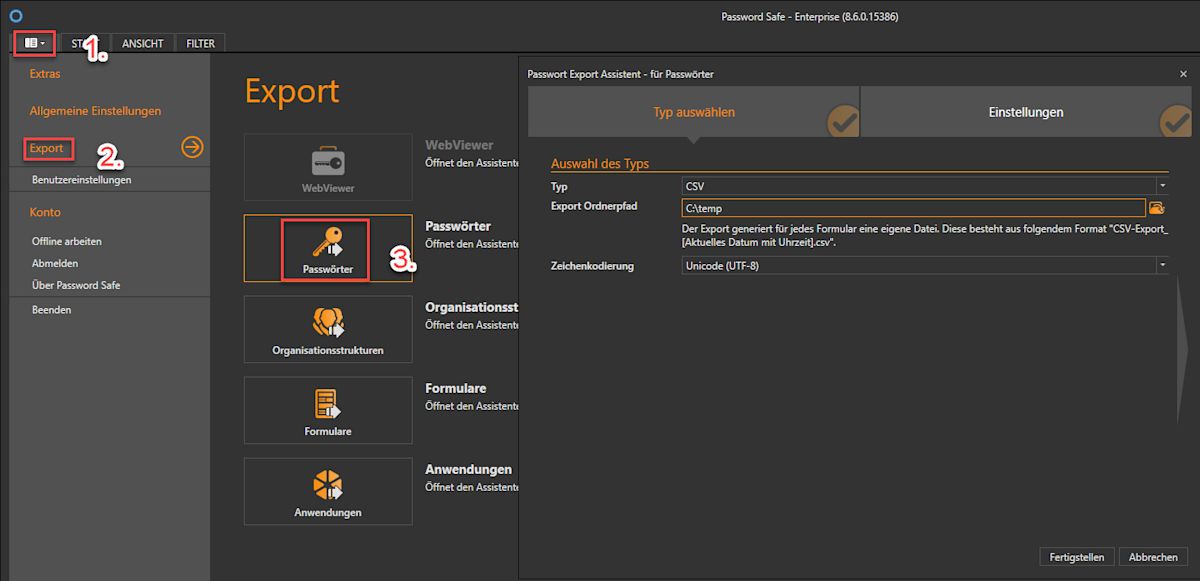
Export from Desktop App Click on the big gray arrow on the right to proceed to the export settings screen.
Set the separating character to Semicolon.
Set the text qualifier to
"(double quote).Check the checkbox to keep the column headers.
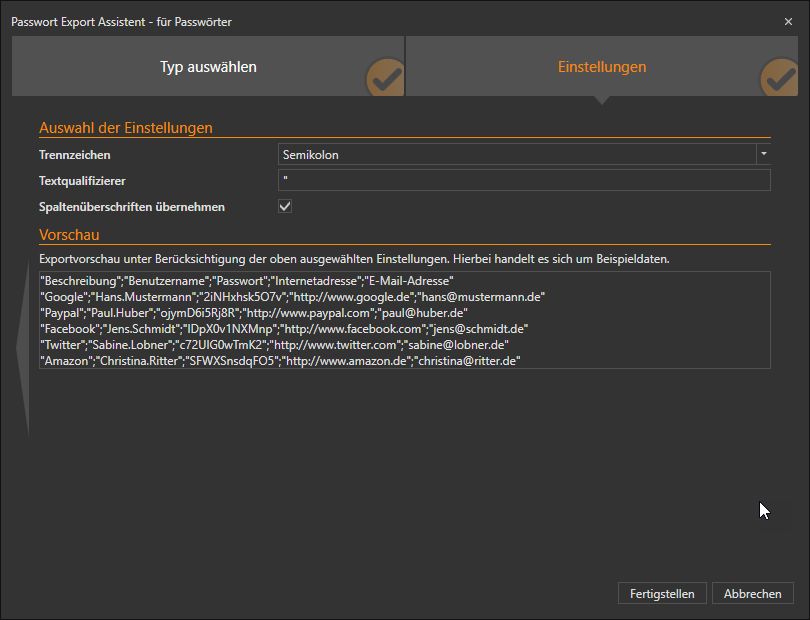
Export settings screen from Desktop App Click Finish to start the export.
warning
Please note that Password Safe will export a
.csvfor every category you have and not just a single.csv.


Currently, Bitwarden do not offer a specific importer for this type of file. To prepare the exported file for import, please follow these instructions.
Data can be imported to Bitwarden from the web app, browser extension, desktop app, and CLI. Data is encrypted locally before being sent to the server for storage.
note
While some item types cannot be imported, you can still add them to a vault:
Upload file attachments to the new vault individually.
Re-create Sends in the new vault.
To import data to your Bitwarden vault:
Select Tools.
Select Import:
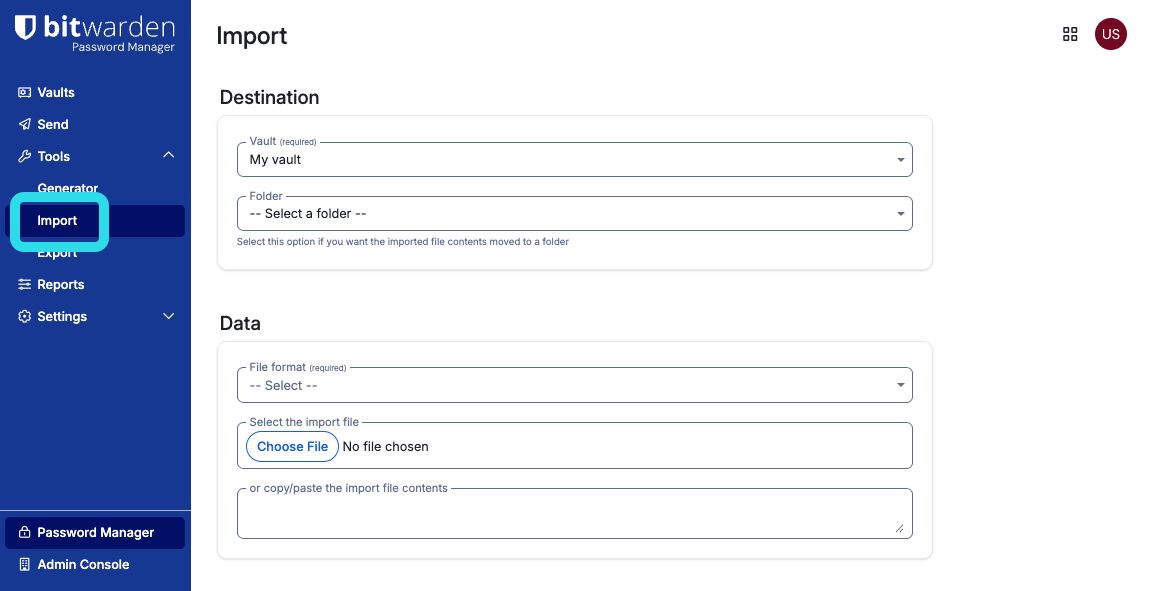
Import items From the Vault dropdown menu, select where to save the data:
To save data in your personal vault, select My vault. (Optional) Choose an existing Folder to organize the imported items.
note
If your data file contains folders from your previous password manager and you select a destination folder from the dropdown menu, the imported folders will be nested inside the folder you selected.
To save data in an organization's vault, select the organization's name. (Optional) Choose a Collection to organize the imported items and share with other members. (You can only choose a collection where you have can manage permission.)
From the File format dropdown menu, select the file format of your exported data.
To enter your data, do one of the following:
Select Choose File and pick the exported file from your computer.
Copy and paste the contents of your exported file into the text box.
warning
Importing does not check for duplicates. If you import the same file more than once or import items already in your vault, duplicate items will be created.
Select Import. If you're importing a password-protected
.jsonfile, enter the password into the Confirm vault import window that appears.After your data is imported, delete the exported data file from your computer. This will protect you in the event your computer is compromised.

If an “Import error” message appears, no data was added to your vault. Fix the import file issue and try again.