Huntress SIEM
Huntress is a managed security platform that provides threat detection, investigation, and response capabilities. Huntress Managed SIEM centralizes log data from across your environment and can be integrated with Bitwarden, giving security teams unified visibility into password management activity alongside the rest of their security environment.
To setup Bitwarden as a log source in Huntress, you must:
Have a Bitwarden Teams or Enterprise organization.
Have a Huntress organization that includes Managed SIEM.
Have administrative access to both Bitwarden and Huntress.
note
Both Bitwarden and Huntress use the term "organization" to describe the entity that ties together users and data. Since you'll need to access both during setup, this document will disambiguate Bitwarden organizations and Huntress organizations where applicable.
To add Bitwarden as a log source to the Huntress Managed SIEM platform:
In Huntress, navigate to SIEM → Source Management.
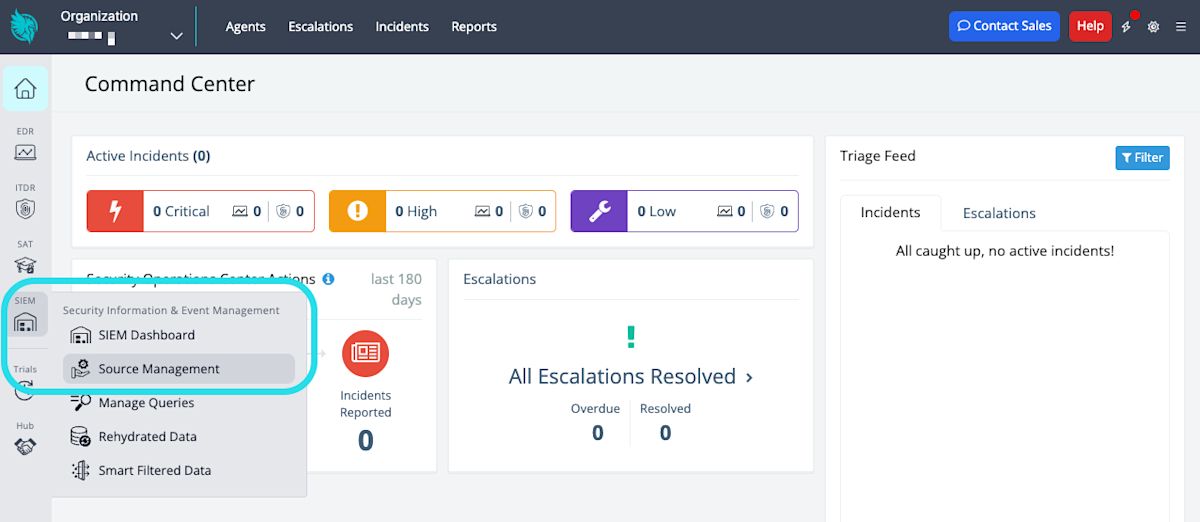
Source Management Select Add Source and, from the dropdown, select Bitwarden.
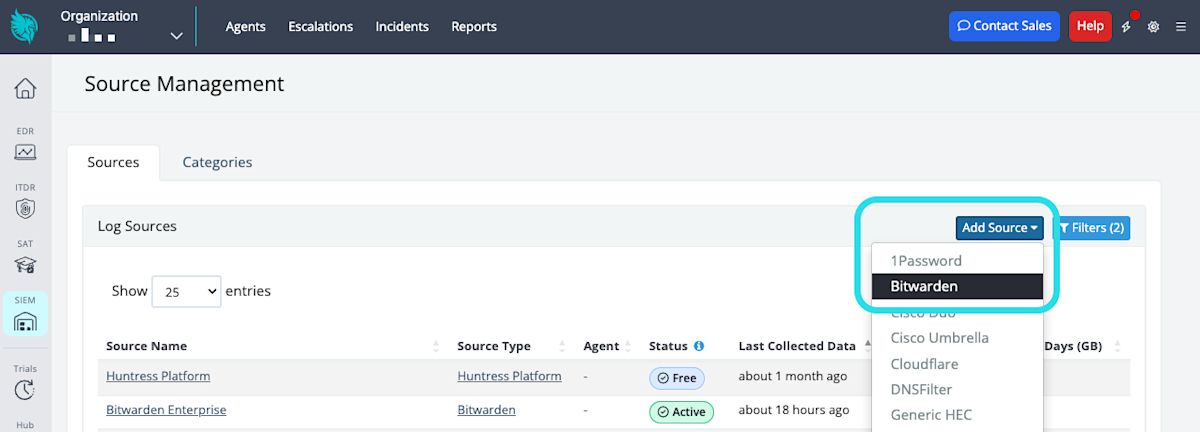
Add source Select Add. If you have other pre-existing Bitwarden log sources, they'll also be listed on this page.
Select a configuration method. The method you choose will depend on whether your Bitwarden organization is on a Bitwarden cloud server or a self-hosted server:
If your Bitwarden organization is on a Bitwarden cloud server (US or EU):
Choose I am using Bitwarden's Cloud Hosting and select Next.
From the Organization dropdown, select a Huntress organization that includes Managed SIEM.
Provide a Name that can be used to identify the integration and, optionally, a Description.
Select Save.
On the following page, take note of the HTTP Event Collector URL and HTTP Event Collector Token. You will need these values in a subsequent step.
note
If you click out of this view, you can re-retrieve these values by navigating back to the list of Bitwarden log sources, choosing the source, and selecting the Configure button.
In Bitwarden, open the Admin Console and navigate to the Integrations page and Event management tab.
Scroll down to the Huntress card and select the Connect Huntress button:
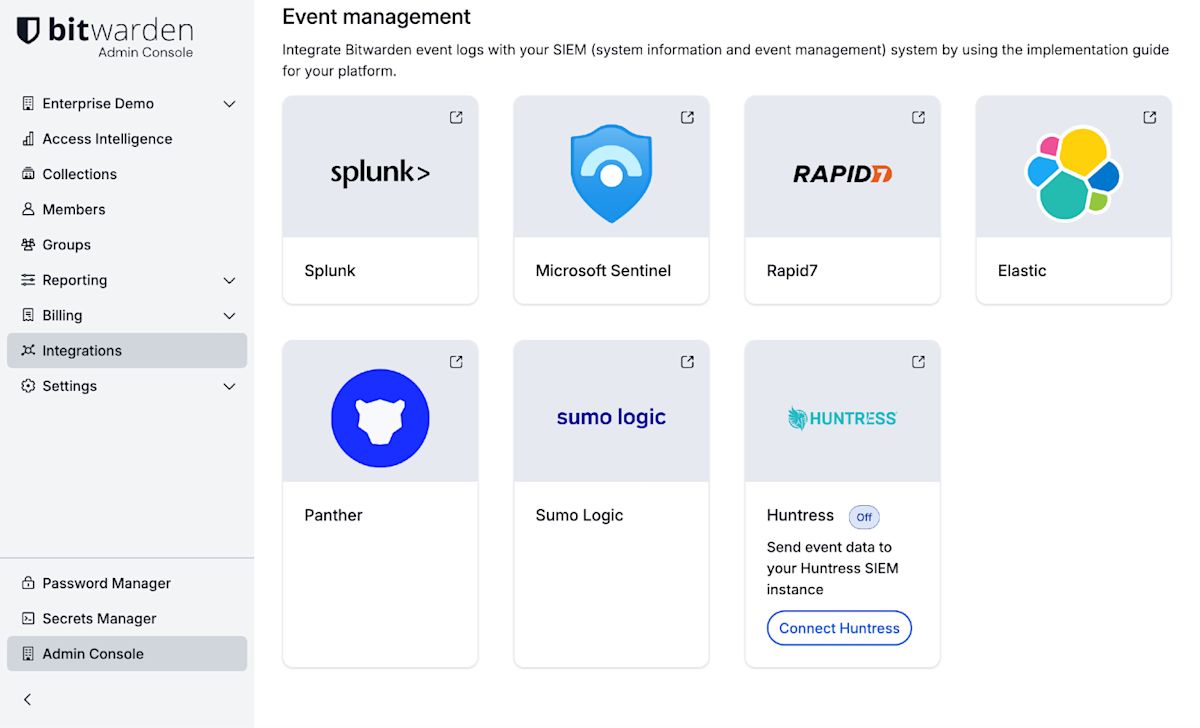
Integrations page Copy your HTTP Event Collector URL and HTTP Event Collector Token from Huntress and paste them into the Connect Huntress panel in Bitwarden.
Select Save.


